
Assign to one student
If you want to assign the test to one of your students, follow these steps:

Start by checking going to Test and checking you have enough credits

Then, on a student, hover over their name and click the button with the three dots. Click Assign test.
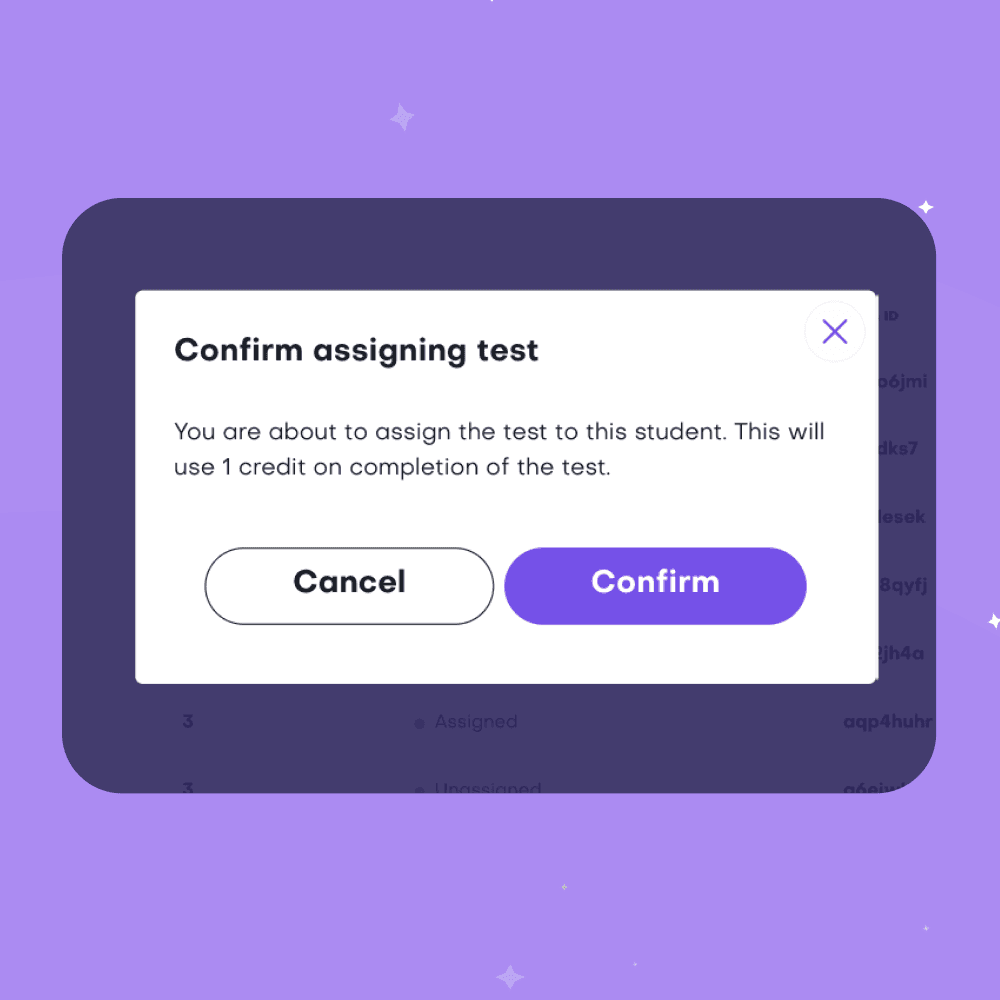
A pop-up will appear, if you're happy to assign the test, click Confirm.
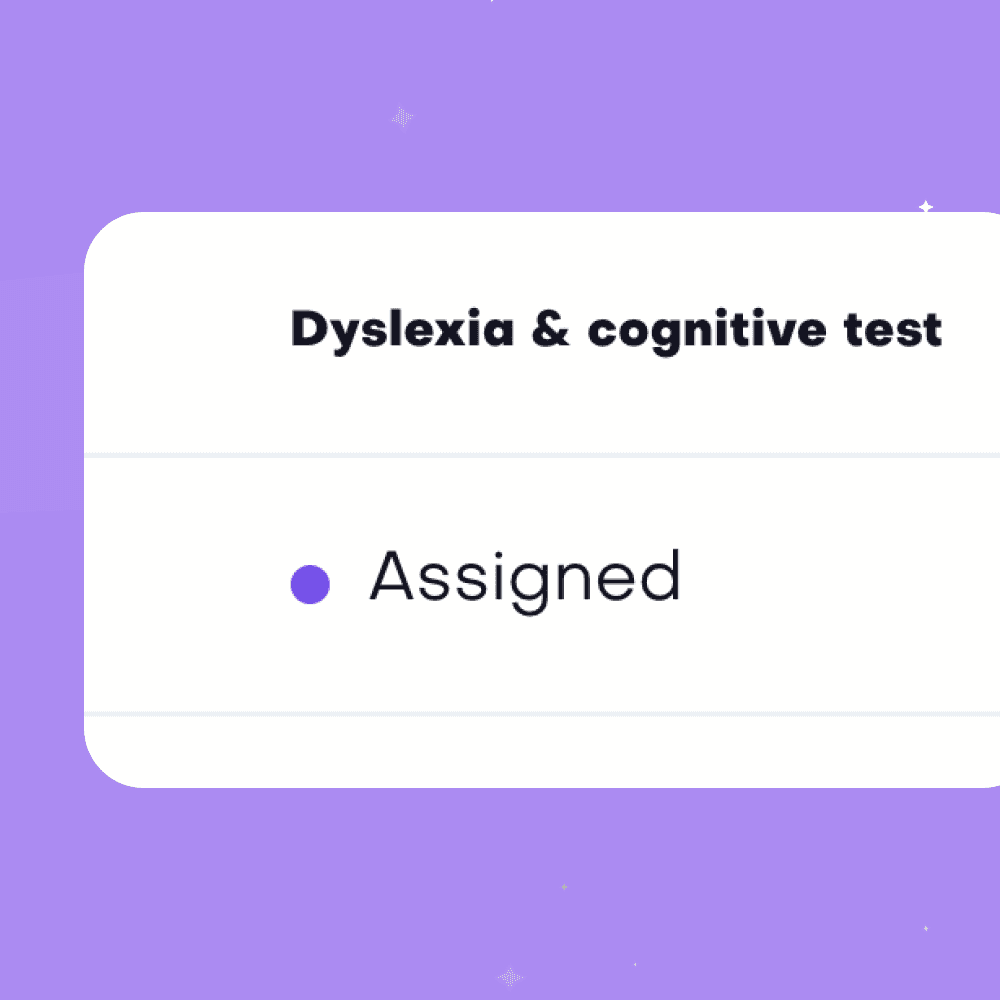
Once it closes, you'll see that the status of the student has now changed to Assigned.
All done! 👍
If you want to un-assign the test, just do the same but click Remove test instead!
Assign to multiple students
If you have lots of students you want to assign to the test to at once, the steps are a little different:
Same as above, start by checking going to Test and checking you have enough credits.

Then, click the checkbox on all of the students you want to assign the test to.
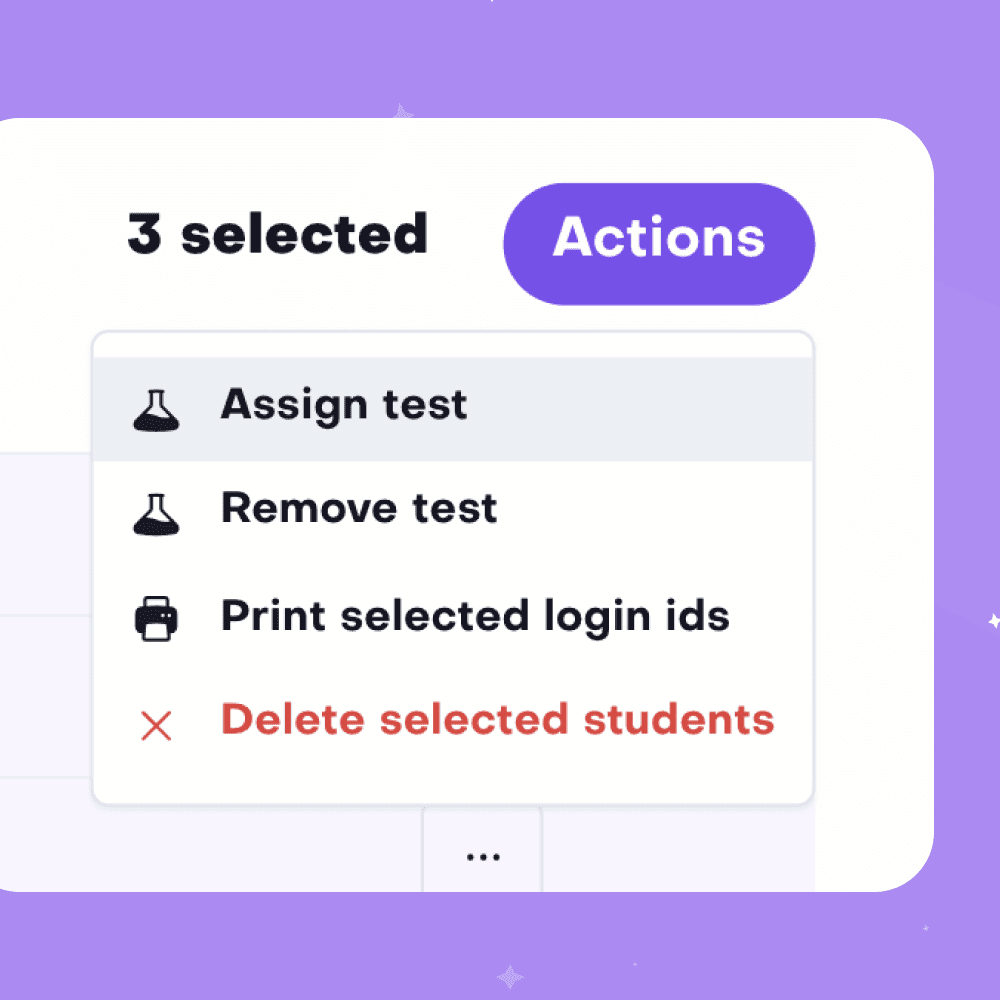
Click the Actions button on the right and click Assign Test. Make sure you have enough credits to cover all of the students!
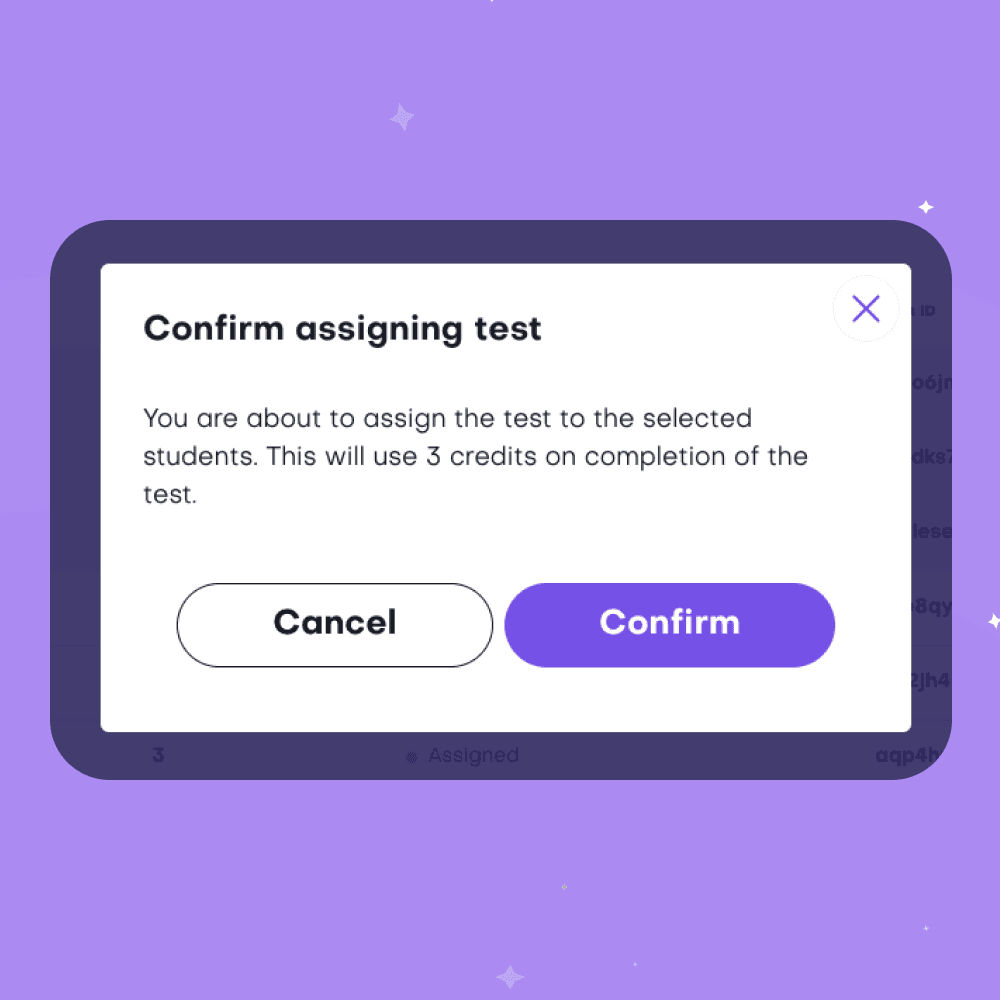
Confirm you're happy in the pop-up.
Once it closes, you'll see that the students' status will have changed to Assigned.
You can un-assign on multiple students by following this process but clicking Remove Test instead.
Need more help? Email us at hello@talamo.co.uk
Continue to…
© Talamo 2025
Terms & conditions